
E-Prescribing with Weno
Search 89,000+ real pharmacies (Weno directory + national registry), choose the right prescriber, launch Weno EZ ComposeRx embedded in the chart, and track delivery in Rx history.
For: Providers, MAs, AdminElectronic prescribing runs on Weno EZ Integration. From a patient's chart you open e-Prescribe (Weno), choose the prescriber, and Weno's ComposeRx screen opens embedded in the EHR — pre-filled with the patient and their pharmacy. Delivery status flows back into Rx history. The pharmacy search is backed by Weno's full LITE directory (89,000+ pharmacies with real NCPDP IDs) and is combined with the NPPES national registry.
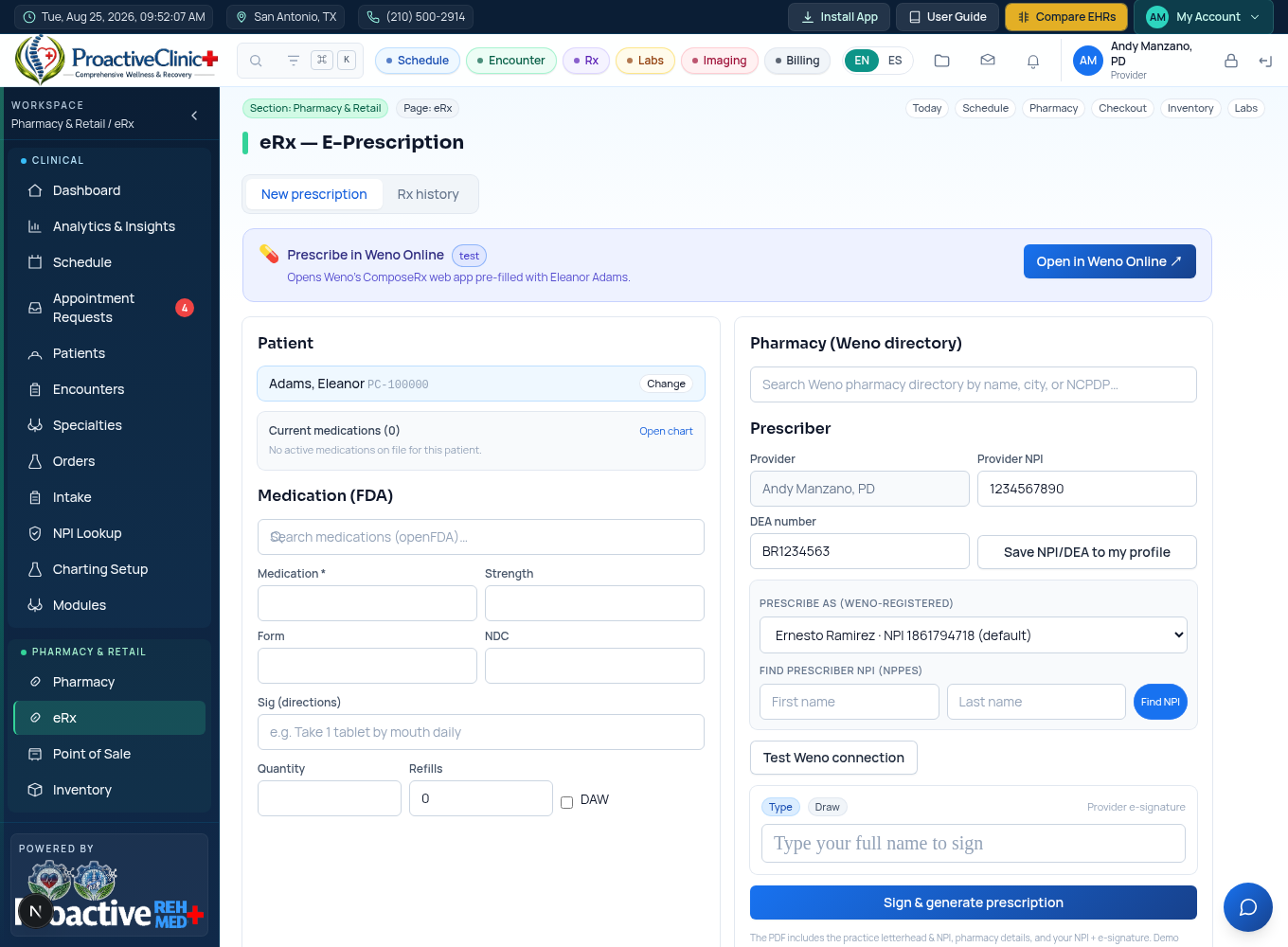
Find a pharmacy (structured search)
- 1Type a pharmacy name, NCPDP ID or a 10-digit NPI in the main box for a quick lookup.
- 2Click “Search by address / city / state / zip / NPI” to combine fields — ideal for finding a specific location of a chain, or add the NPI field to pin an exact pharmacy.
- 3Recently-used pharmacies appear as quick-pick chips above the search; when the patient's ZIP is known, tick “Sort by distance” to order matches nearest to them.
- 4Results show a count (e.g. “Showing 61 of 391”) in a scrollable list and combine sources: “Weno” (real NCPDP, ready to route — a ✓ marks Weno-connected and these rank first), “Saved” (your local directory) and “National” (NPPES).
- 5Pick a “National” (NPPES) result and it is auto-added to your directory so it becomes selectable/routable next time.
Choose the prescriber (“Prescribe as”)
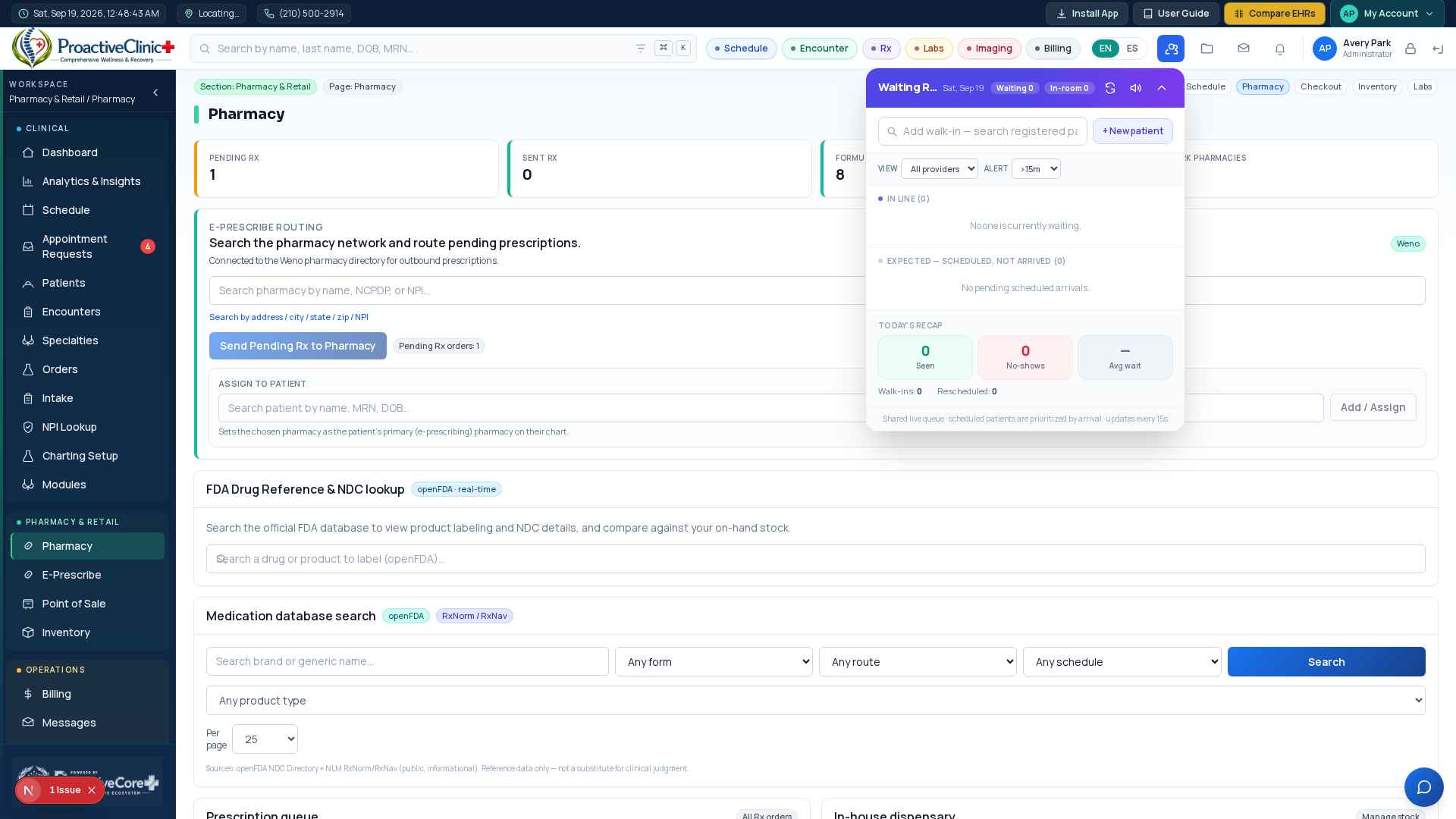
On the e-Prescribe screen the “Prescribe as” dropdown lists every valid prescriber — both Weno-registered prescribers and any provider account that has an NPI — so the correct provider can always be chosen no matter who is logged in or which admin account is in Settings. The right prescriber is auto-selected for your login (matched by account, then NPI, then name, then the clinic default).
- 1Prescribe as: pick the provider; ComposeRx opens as that prescriber when they have their own Weno login on file, otherwise it opens with the clinic account.
- 2Find prescriber NPI (NPPES): search by first/last name to fill the NPI from the national registry.
- 3Test Weno connection: instantly confirms Weno EZ Integration is configured and the launch is ready.
Prescribe in Weno EZ Integration (ComposeRx)
- 1Open a patient's chart and choose e-Prescribe (Weno).
- 2Confirm the prescriber in “Prescribe as”; the embedded ComposeRx screen loads pre-filled with the patient (and their preferred pharmacy if set).
- 3Complete and send the prescription; a “Composing” entry appears in Rx history right away.
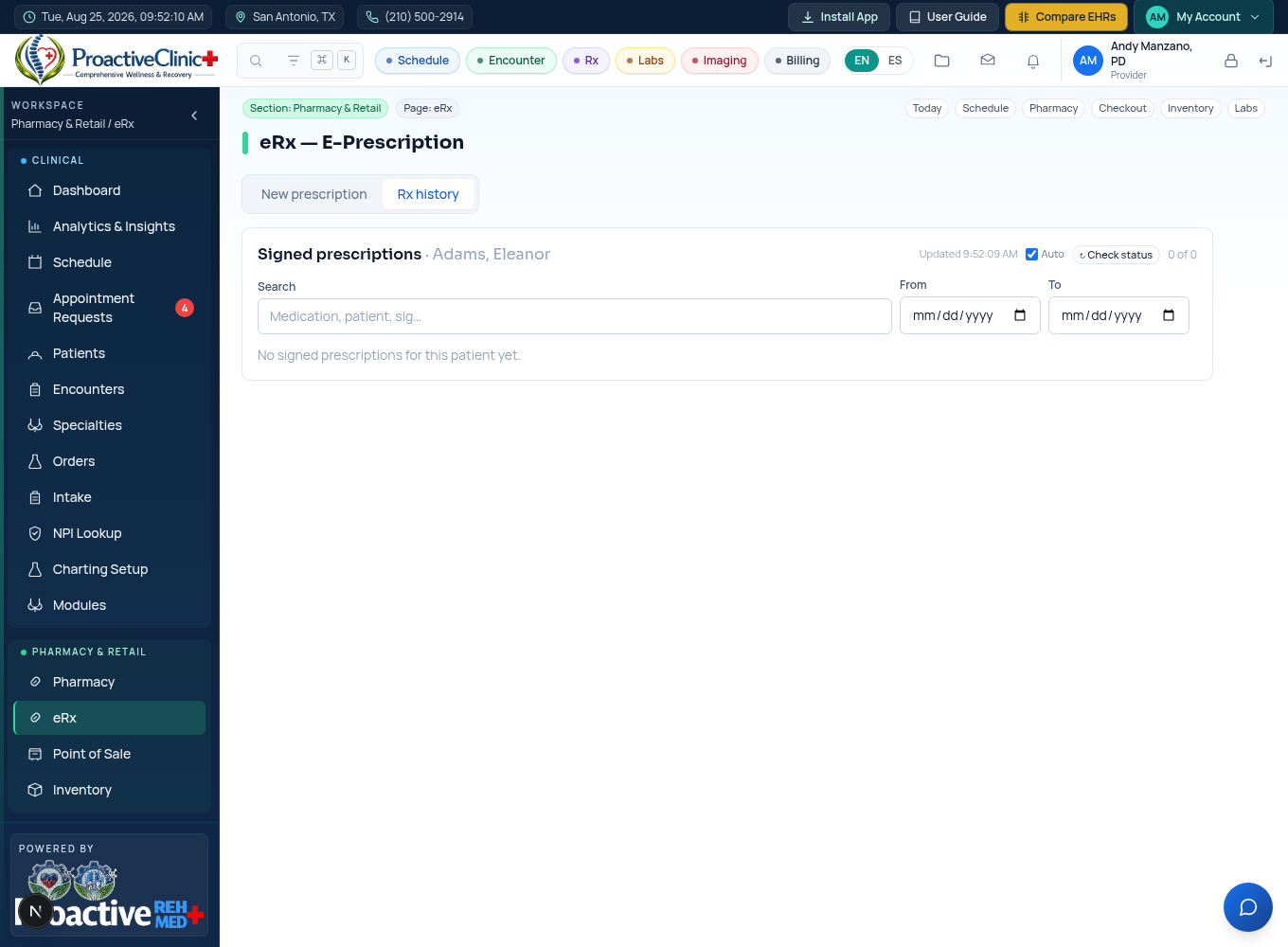
Track delivery in Rx history
Open the Rx history tab to see every prescription with a live Weno status badge — Composing, Submitted, Delivered, Rejected, Cancelled or Send error. Turn on Auto to refresh statuses automatically, or click “Check status” any time. Reprint or re-prescribe from the same row.
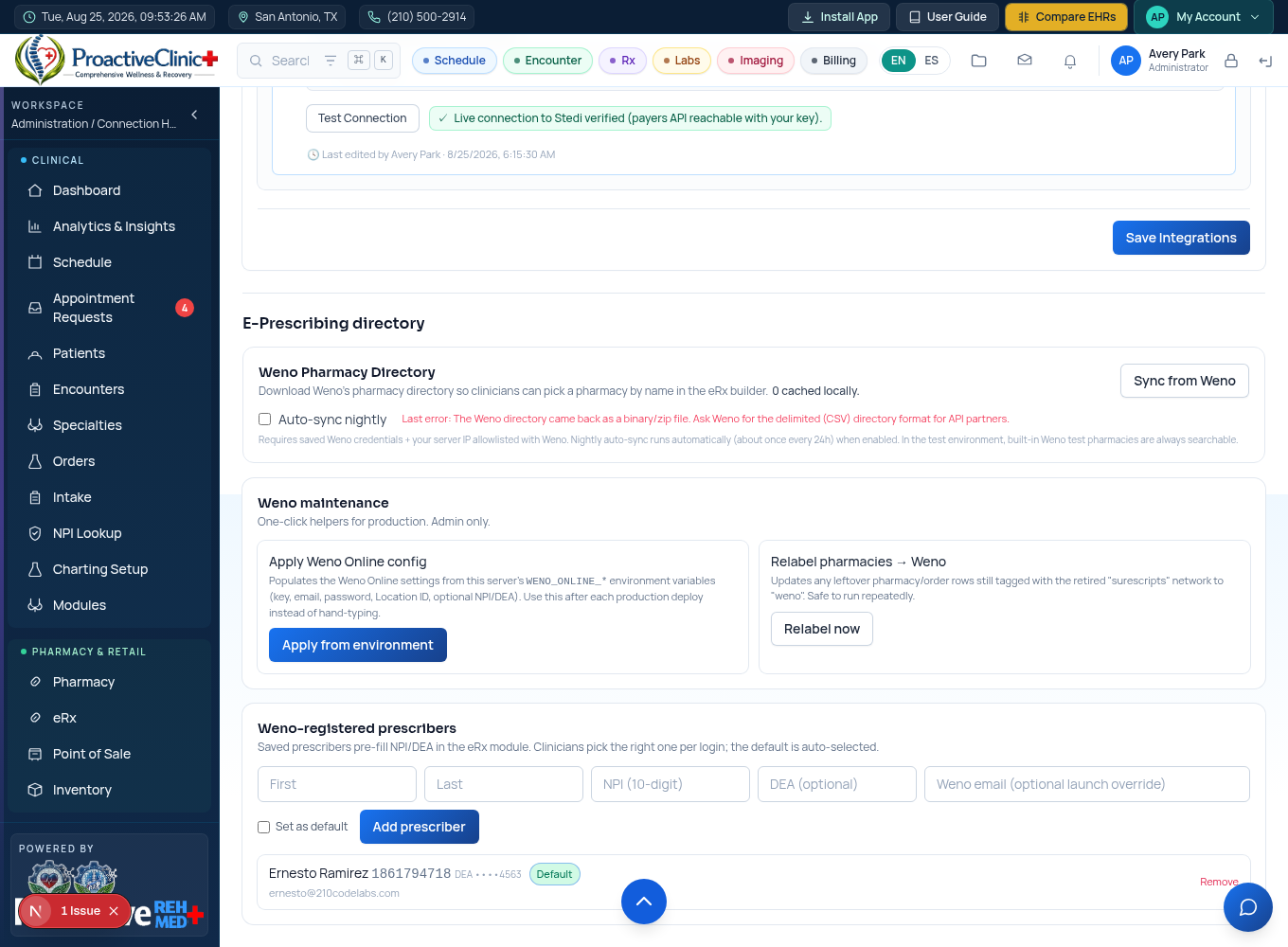
Admin: configure & maintain Weno
- 1Credentials: enter the admin email, password, EHR Encryption Key and Location ID, choose the environment, and use Test Connection to verify.
- 2Pharmacy directory: click “Full sync now” (weekly) to load the full Weno directory with real NCPDP IDs, and “Daily changes” (nightly) to stay current — the report shows how many pharmacies were updated.
- 3Registered prescribers: add each prescriber's NPI/DEA, and optionally their own Weno email + password + Location ID so ComposeRx opens as them; set one as the default.
- 4Apply from environment / Relabel: one-click helpers to load settings from server variables after a deploy and tidy legacy pharmacy tags.