

Orders (Rx, Labs & More)
Send prescriptions and lab, imaging, referral and procedure orders.
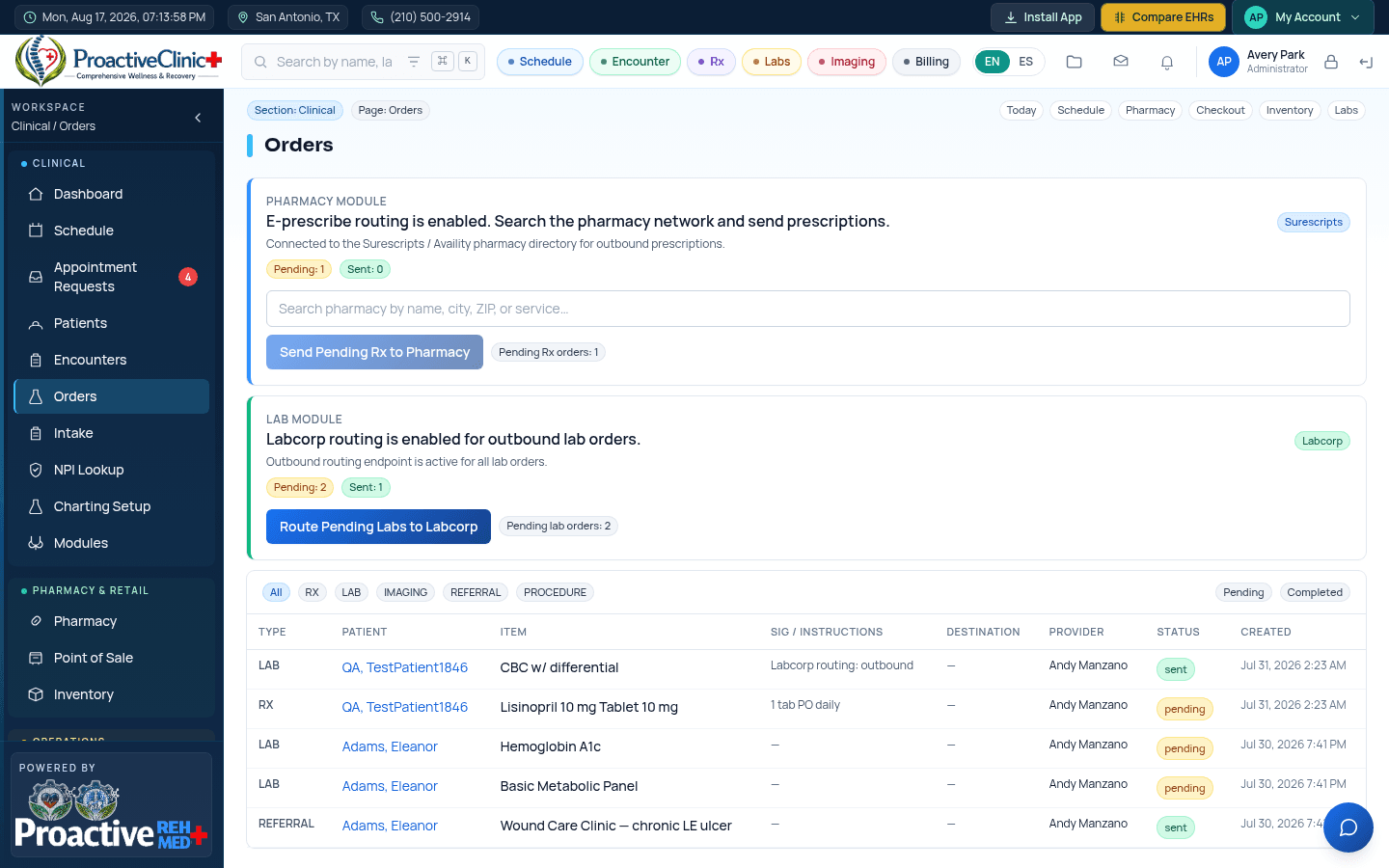
For: Providers, MAsOrders can be placed from the patient chart or reviewed in the central Orders workspace. Filter by type (Rx, Lab, Imaging, Referral, Procedure) or status (Pending, Completed).
E-prescribe
- 1In the chart → Orders → New, choose Rx (or open e-Prescribe (Weno) in the sidebar).
- 2Search the medication, set strength, form, sig and quantity.
- 3Search the pharmacy by name/NCPDP — or by address, city, state and zip — across the Weno directory and the national registry, then select it.
- 4Confirm the prescriber in “Prescribe as”, then sign/send; track pending vs. sent counts in the Orders workspace.
Lab order
- 1Choose Lab, pick the test(s) and add clinical instructions.
- 2Route to the lab; the order shows as Pending until sent.
Tip:Pharmacy e-prescribe and lab routing are enabled per your clinic's admin settings. If a control is greyed out, an admin needs to enable that module or grant your role permission.