
Scheduling & Calendar
Book, drag-to-reschedule and create repeating visits across day, week, month and staff views.
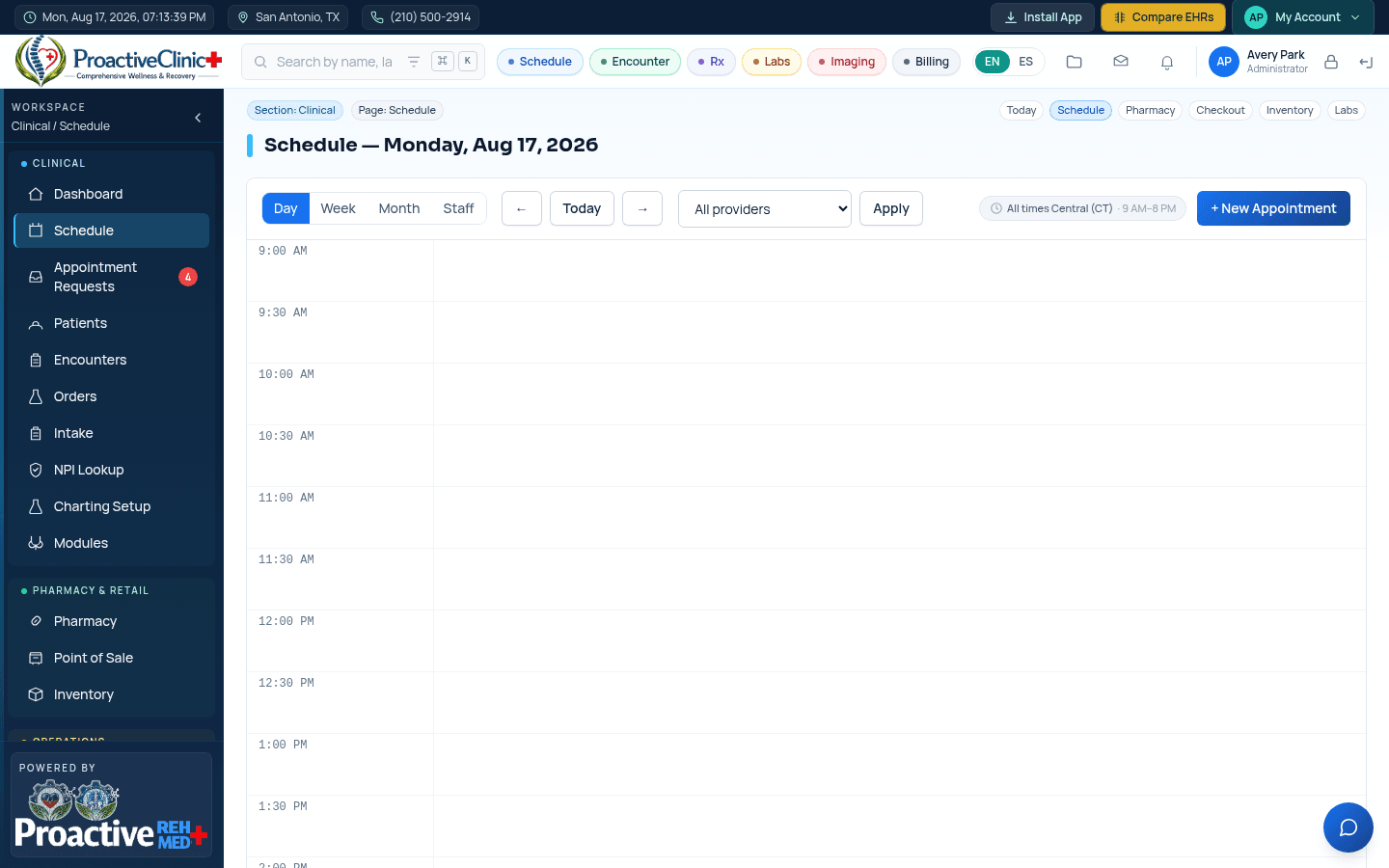
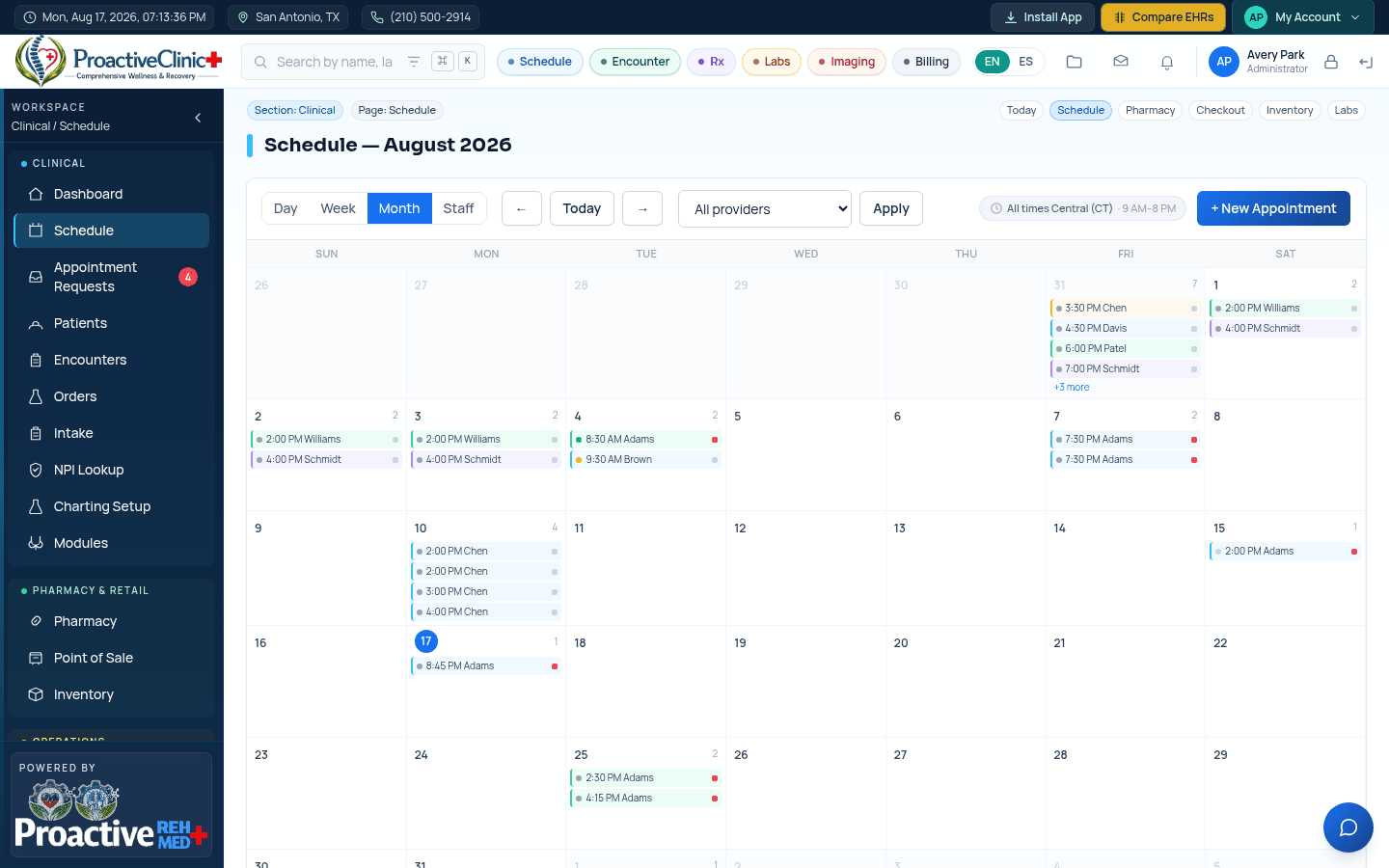
For: Front desk, providersOpen Schedule from the sidebar. Switch between Day, Week, Month and Staff views using the toggle at the top-left. Use the ← Today → controls to move through dates, and the provider dropdown to focus on one provider.
Important:The clinic is open 9:00 AM – 8:00 PM Central. The calendar grid and every booking form enforce these hours — you can't accidentally book outside them.
Book an appointment (front desk)
New appointment
- 1On the Schedule, click + New Appointment (top-right).
- 2Search the patient by name, MRN or DOB and select them.
- 3Pick the provider and service/visit type.
- 4Choose the date and a time between 9:00 AM and 8:00 PM.
- 5(Optional) Set Repeat to create a recurring series — see “Repeating visits” below.
- 6Click Schedule. The visit appears on the calendar color-coded by provider.
Repeating visits
Recurring therapy or follow-up plans can be booked in one step from the New Appointment window.
Create a series
- 1In New Appointment, choose the patient, provider, service, first date and time.
- 2Set Repeat to Daily, Weekly, Every 2 weeks or Monthly.
- 3Enter how many Occurrences to create (2–26). The button updates to read “Schedule N visits”.
- 4Click Schedule. Every occurrence is created at the same time on the recurring dates.
Tip:Any occurrence that would fall outside clinic hours or clash with the provider is skipped automatically, and the window shows how many visits were created versus skipped.
Reschedule by dragging (every view)
You can drag an appointment to move it in any calendar view — the visit's duration is always kept.
How dragging works per view
- 1Day: drag a visit up or down the time rail to change its time.
- 2Week: drag a visit onto another day column to move it to that day (same time).
- 3Month: drag a visit onto another date to move it (same time).
- 4Staff: drag a visit within a provider's column to change the time, or across to another provider's column to reassign it.
Tip:As you drag, open time slots turn green and any slot that would double-book the provider turns red — a clashing drop is blocked, so you can't accidentally overbook. If you book into an occupied or after-hours slot, the visit is automatically moved to the next available time that day. If a move can't be saved, an on-screen message explains why and the visit snaps back to where it was.
Day Agenda widget (appointments, open slots & waitlist)
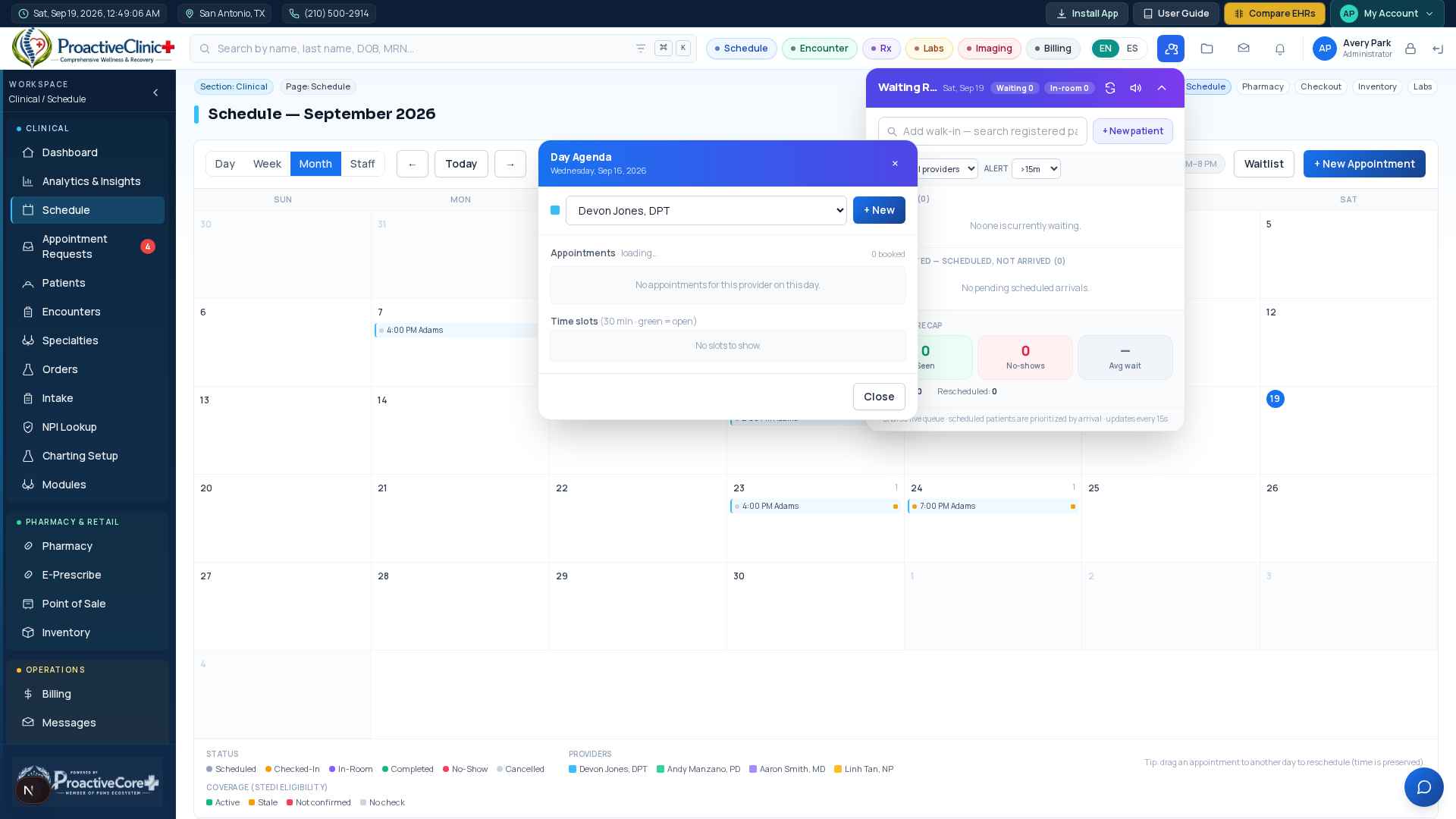
Click any date box in Month/Week (or the date header in Day/Staff, and the Dashboard mini-calendar) to open a floating Day Agenda for that day.
What you can do
- 1See every appointment for the chosen provider that day (tinted by provider color) alongside a grid of open time slots.
- 2Move an appointment: drag its card onto an open slot, or click Move then a slot — a clash auto-shifts to the nearest open time.
- 3Fill a slot from the waitlist: the next matching waiting patient appears with “Offer next open” (one click) or “Pick slot” — the patient gets a self-confirm link.
- 4Click any open slot to start a New Appointment already set to that time.
Manage the day (Day view)
During the day
- 1The Day view shows a 9 AM–8 PM time grid with every visit placed in its slot.
- 2Click an empty time slot to start a New Appointment already set to that time.
- 3Check patients in, mark them in-room, or complete visits from each card.
- 4Copay and balance indicators help the front desk collect at check-in.